
Is your Magento 2 website slow? This step-by-step guide will discuss multiple ways that can help you speed up your Magento 2 website. Slow loading speeds can hinder the user experience on your website. Ultimately bad user experience means reducing traffic, people do not like to browse slow sites, especially e-commerce stores. Hence, it is crucial for you to keep tuning your website at the peak of its performance. Follow this simple guide to increase the performance of your store easily.
Table of Contents
-
- Choose the right server
- Upgrade to the latest version of Magento
- Turn on minification of javascript, HTML, and CSS files
- Enable Gzip compression
- Set up CDN
- Enable lazy loading
- Choose and enable the right cache(Varnish/Redis)
- Optimizing images
- PHP 8
- Switching to Production Mode
- Use Cache Warmer
- Audit Third Party Extensions
1. Choose the Right Server
First and foremost is the hosting. People often make mistakes when choosing the right server. Unlike other websites, e-commerce stores require a high standard of hosting so never opt for shared hosting. It can significantly decrease your performance. We would suggest you go with dedicated servers or VPS hosting for your store. Some of these servers are specially configured to host Magento websites and hence they would be a good choice. It will help you speed up your Magento 2 website.
2. Upgrade to the Latest Version of Magento
Magento releases new versions or upgrades more often and they have several performance improvements over the previous version. Also, they always provide notifications for new versions and improvements. To check them simply login to your admin panel and then check the notifications dropdown on the top right of your store. Refer to the image below:-
Although Magento 2 supports PHP5.6 you should upgrade your PHP version to 7 since it has way more improved performance than its predecessors.
3. Turn of Minification of Javascript, HTML, and CSS files
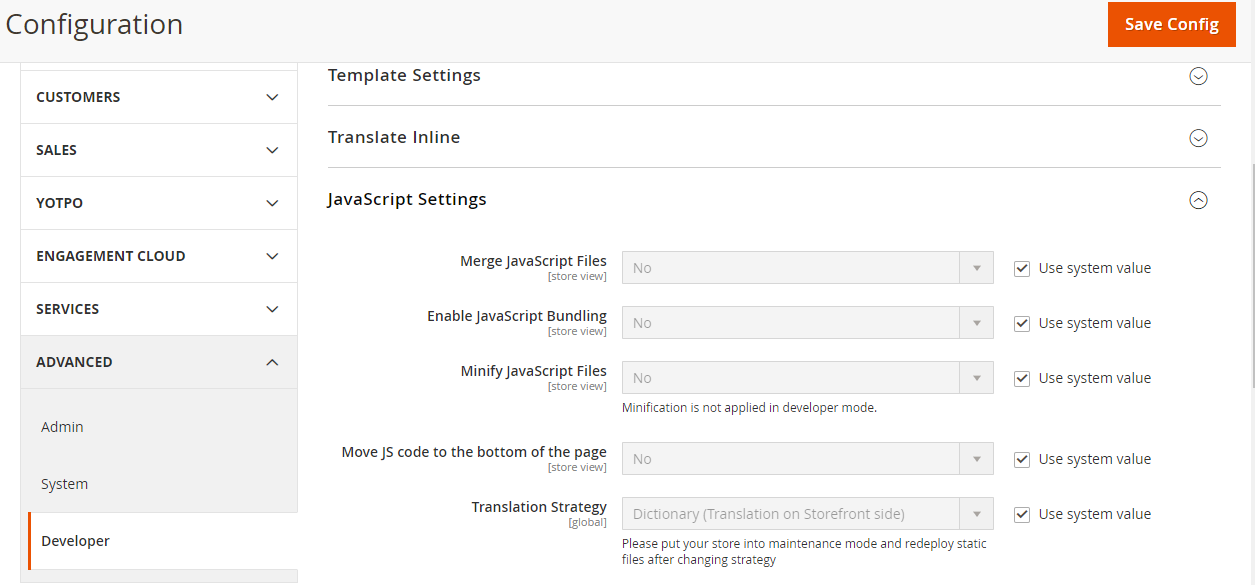
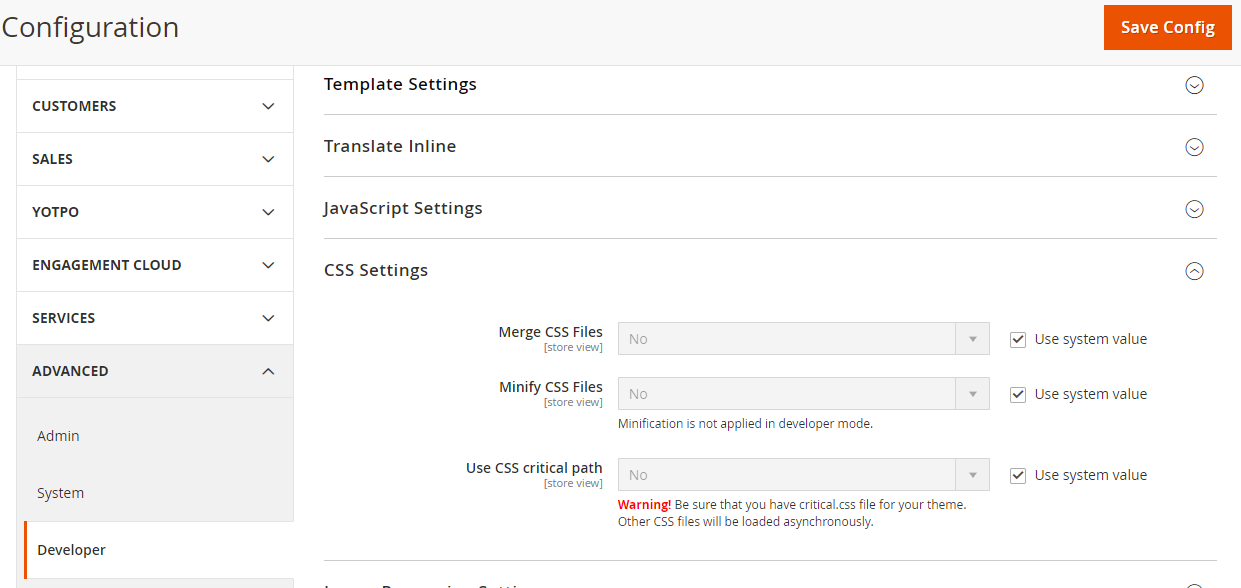
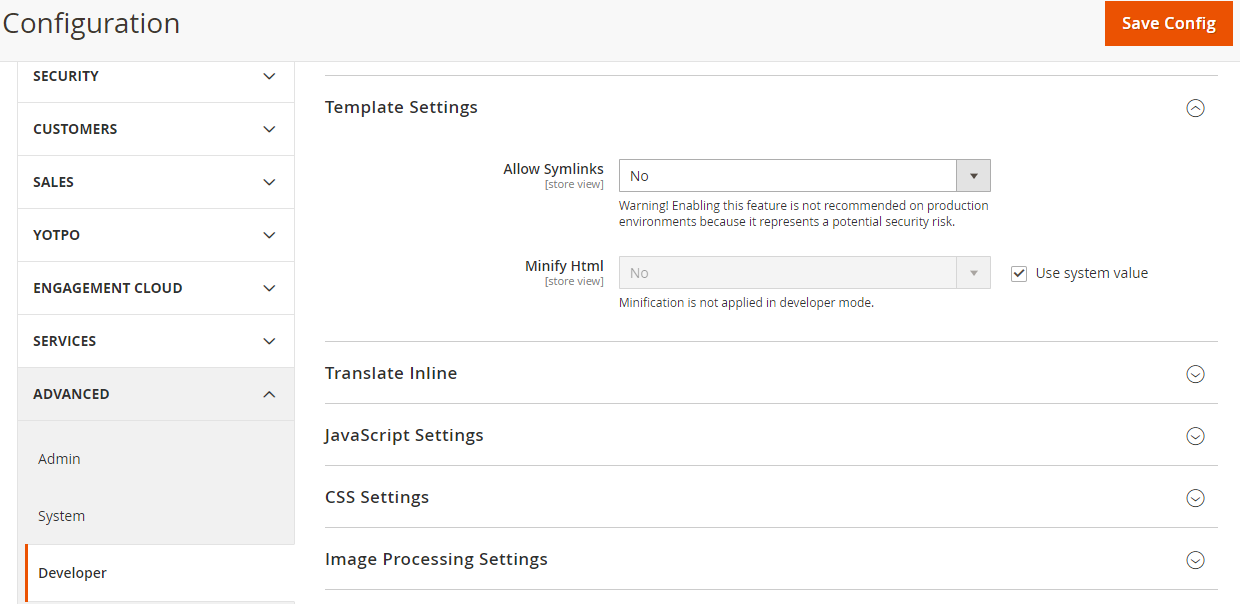
Turning on minification for your code files such as Javascript, HTML, and CSS will surely give you a performance boost. Minification stands for removing the unnecessary elements from the code while keeping the functionality intact so that the code will still execute. You will have much faster rendering speeds. Follow the instructions below to turn on minification:-
- Login to your admin panel.
- Navigate to Stores>Configuration>Advanced>Developer.
- Now go to template settings, javascript settings, and CSS settings.
- Select Yes from the drop-down to turn on the minification for the respective settings.
Learn more about Minification HERE.
4. Enable Gzip Compression
Gzip compression is a great way to increase the page speeds on your website. It will help compress all the large files so that if a user requests those files, the transfer can be lightning fast. Enabling Gzip compression will add to your user experience and will provide a smooth workflow for your users. To learn more about Gzip Compression and enable it Click HERE.
5. Set up CDN(Content Delivery Network)
A good content delivery network will help you improve the performance of your website for users in different parts of the world. Suppose if you are server is located in one continent and the user is browsing the store from another continent then there is bound to be a delay in the transfer of files causing lag or slow loading issues. CDN takes care of that for you by setting up different servers in different locations. Let us learn how you can enable it on your Magento 2 store:-
- Login to your admin panel.
- Navigate to Stores>Configuration>General>Web.
- Enter your CDN URL into the BASE URL Section and Secure Base section as well.
- Save the changes and you are done.
To learn about how to select the best CDN for you and know more about the same click HERE.
6. Enable Lazy Loading
Normal when your Magento 2 website loads, all the images displayed on the store is also loaded at once which can cause delays and loading issues. To fix that you can utilize lazy loading to load only selected few images in the start and when the user scrolls the page then the next images load. Sadly, there is no out of the box functionality to enable this feature on your store but worry not we have devised a smart extension that can enable this feature for you.
Check out our Magento 2 Lazy Loading Extension and to learn more about lazy loading click HERE.
7. Choose and Enable the right Cache(Varnish/Redis)
A cache is one of the most effective ways to improve the performance of your store. It helps you store some files on the user’s browser so that when they visit the store again the page could be loaded much faster. Magento 2 has two types of cache namely Client-side Cache and Server-side cache. It also has a built-in full page cache that can cache several different files such as configurations, layouts, templates, and many more. We would recommend you to use varnish or Redis to improve your performance.
Varnish
Magento’s full page cache supports Varnish so we can easily enable varnish on our Magento 2 stores. It is one of the top caching solutions for Magento 2 which can drastically improve the page speed on your store. Varnish manages the Magento cache mechanism and reduces the server load. It is also known as HTTP accelerator and reduce the page response time by huge margins. You can enable varnish or full page cache by following the steps below:-
- Login to your admin panel.
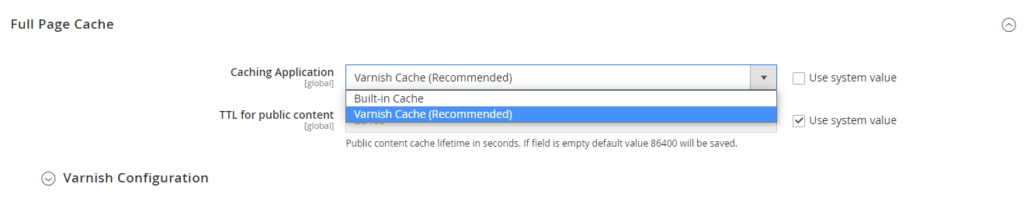
- Navigate to Stores>Configuration>Advanced>System.
- Go to full page cache and select built-in cache if you want to use that or select varnish if you have that set up in your store.
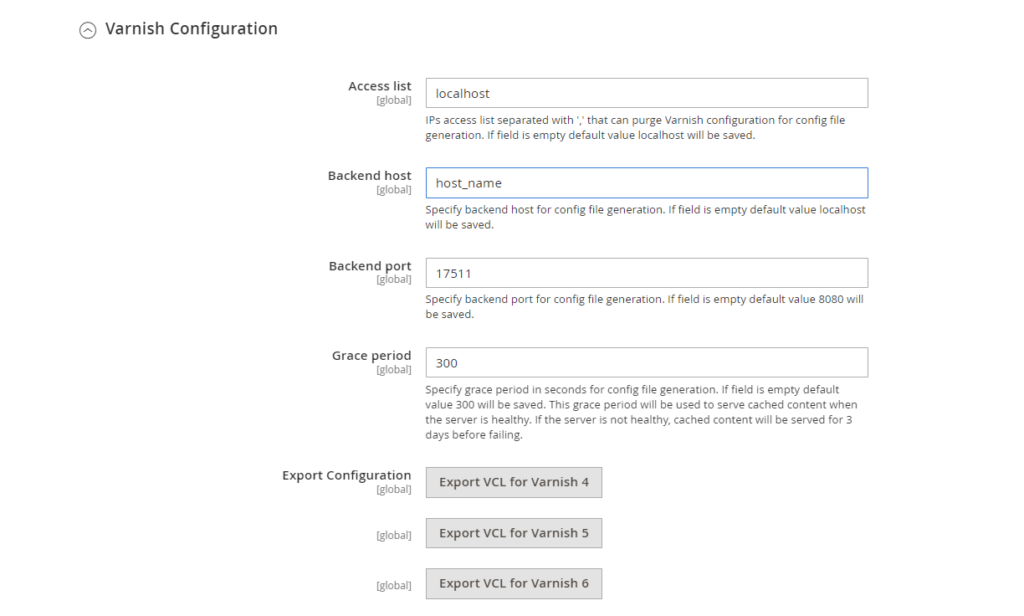
- If you select varnish then you will need to do several configuration settings such as Access list, Backend host, Backend port.
- You can also use the following commands to enable or disable cache from the terminal.
$ php bin/magento cache:enable
$ php bin/magento cache:disable
To learn more about caching and varnish click HERE.
Redis
Another great caching option for Magento 2 is Redis. It can bring down page response times by using intricate caching techniques such as session cache management. It can also be used as a PHP session store and you can completely replace the memcached with Redis. Redis indexes tags in files reducing the full scan of the cache files during tag operations. The metadata and cache record is stored in the same file. you can enable redis by changing the eav.php(app/etc/env.php) file as follows:-
'cache' => [
    'frontend' => [
        'default' => [
            'backend' => 'Magento\\Framework\\Cache\\Backend\\Redis',
            'backend_options' => [
                'server' => '127.0.0.1',
                'database' => '0',
                'port' => '6379'
            ],
        ],
        'page_cache' => [
            'backend' => 'Magento\\Framework\\Cache\\Backend\\Redis',
            'backend_options' => [
                'server' => '127.0.0.1',
                'port' => '6379',
                'database' => '1',
                'compress_data' => '0'
            ]
        ]
    ]
],
Please refer to the following documentation for more setup instructions.
8. Optimizing Images
Optimizing images is also a good way to add to your performance and speed up your Magento 2 website. You need to take care of several things such as logos sound be in a PNG format, images should be compressed, and other images should be in a JPEG format. If you are not sure about image optimizations or do not want to get into technicalities then we would suggest you try this Magento 2 Image Optimizer extension that will do all the heavy lifting for you.
9. PHP 8
As new Magento versions are being released, they are based on the latest versions of PHP as well. Currently, PHP 8 is the latest version which can help reduce the page load time. Upgrading to the latest version of PHP will give a significant boost to your Magento store’s performance. Several tests have been performed which compare the performance results on PHP 7 vs PHP 8 showing how PHP 8 is much faster. We recommend upgrading the PHP version to boost your store.
10. Switching to Production mode
Magento 2 has different deployment modes for different functionalities in which the behaviour of the files change according to the mode selected. Changing the operating mode can quickly give you a huge boost in page speed and reduce the load time of the pages. Magento 2 offers four deployment modes out of the box:-
- Default mode.
- Developer mode.
- Production mode.
- Maintenance mode.
The Production mode is the fastest when it comes to page speeds. We recommend using production mode to improve performance. You can enable production mode using the following command:-
php bin/magento deploy:mode:set production
11. Use Cache Warmer
We recommend using our Magento 2 Full Page Cache Warmer module which can give you a huge boost in performance and bring down the page response times by huge margins. It automatically updates the cache on page update. The module automates the cache warming process requiring no manual intervention and doing all the heavy lifting by itself. The module generates logs as well as gives you a cache grid to generate caches manually if you wish so. It gives you much better performance on both the front end and backend.
12. Audit Third Party Extensions
Third-party modules are an often ignored aspect of optimizing performance. They can hugely affect the page speeds and page response times on your store. These modules often add custom HTML, CSS, and Javascript which may not be optimized as per your store. Some modules tend to hurt Magento’s performance greatly. We recommend performing audits for all the third-party modules to see which modules are highly affecting the performance. Once determined you can either choose to optimize these modules or completely remove them to get a performance gain.

It’s very simple to find out any matter on net as compared to textbooks, as I found this article at this
web site.