Google Analytics is one of the most powerful tools in every e-commerce store’s arsenal. It can provide you accurate insights into customer behaviour, sales performance, product performance, etc. That will help you mould your future business strategies for new heights of success. There are several Magento 2 tracking methods out there that can send data to Google Universal Analytics/Google Analytics 4(GA4). Some of the more popular ones are Gtag, Google Tag Manager(GTM), and Enhanced eCommerce tracking. As it goes with all good things there’s bound to be some problem. In this case, one may notice certain transactions missing from Google Analytics Reports. Missing Magento 2 Transactions in Google Analytics 4 (GA4) is a common problem. A lot of our clients come to us with this issue where there are missing transactions when compared from Magento 2 admin orders to Google Analytics Sales reports. Today we will take a deep dive into the reasons for the problem and then provide you with an efficient and easy solution.
Here’s Why Some Transactions Can be Missing From Google Analytics 4 (GA4)
There can be various reasons for transactions Missing Magento 2 Transactions in Google Analytics 4 (GA4) but 99% of the time it’s one or more of the reasons listed below.
1. Disabled Javascript
Javascript is extremely crucial for all tracking methods. By default, all tracking extensions make use of Javascript on the client side. So it is imperative that Javascript is enabled in the client’s browser. If it is disabled then tracking won’t work and no data will be sent to Analytics subsequently.
2. Turned Off Cookies By a Customer or a Third Party Extension
Cookies are an important part of every tracking extension that sends data to Google Analytics. It saves tracking data in the cookies. So if a user has turned off cookies then transactions won’t be tracked and you won’t be able to see them in Analytics. As you may know, the EU has strict GDPR guidelines that require websites to ask for consent before tracking a customer. Extensions that implement GDPR give users the option to opt-out of being tracked. If you have any such extension on your store then there is a high chance that users may opt-out of tracking cookies and you won’t be able to send their transaction data to Analytics.
3. Payment Gateway not Redirecting Customers to Order Confirmation Page
There are certain payment gateway’s that do not require you to be redirected to the store and all the transaction goes through the gateway itself. It essentially means your customers are not getting redirected to the “Thank You” page of your store. Only your store will be notified of the transaction being successful. In such cases, transactions are not tracked and sent to Google Analytics.
4. Certain Payment Methods Do not Support Order Confirmation Page
To stay at the competitive edge of the market every e-commerce supports more than one payment method for their transactions. Some payment methods out there do not support order confirmation pages i.e they do not redirect customers to the confirmation page of your website. Hence transactional data is not sent back to the Analytics. It can be one of the most common reasons for missing transactions in Google Analytics.
5. AdBlockers
AdBlockers have become a trending way to block annoying ads. A huge number of people around the world use AdBlockers on a daily basis to get rid of ads. You might not be aware that these AdBlockers can also block Google Analytics Tracking. So when AdBlockers are enabled in a browser, the transactions might not be sent to Analytics.
6. Orders Coming From Mobile App
Statistical data shows that the majority of shopping happens on mobile devices. Hence, most of the e-commerce stores are also available on Mobile devices as well. Sometimes people forget to enable tracking for the Mobile version of the store so the transactions that occur on those devices are not sent back to Google Analytics.
7. Choosing the Right Tracking Extension
There are tons of tracking extensions on the market. However, the trick is to choose the right one for your store. Some extensions are better than others. As in they can easily get past a lot of problems listed here. Whereas others are not as optimized and can get stuck easily. We recommend you get a demo of our Google Tag Manager Enhanced Ecommerce extension that is built to tackle a lot of problems on this list.
8. Incorrect Tracking Code
All tracking platforms such as Google have specific guidelines on implementing the correct tracking code on your store. Sometimes if the code is implemented incorrectly then you won’t be able to see transactions in your Google Analytics Reports. Here is an example of the correct tracking code from Google’s Developer Documentation:-
9. Several Products in One Transaction
If you are using Enhanced Ecommerce Tracking then you might encounter this issue. This tracking has specific boundaries on how much payload you can send to Google Analytics in one transaction.
Solution
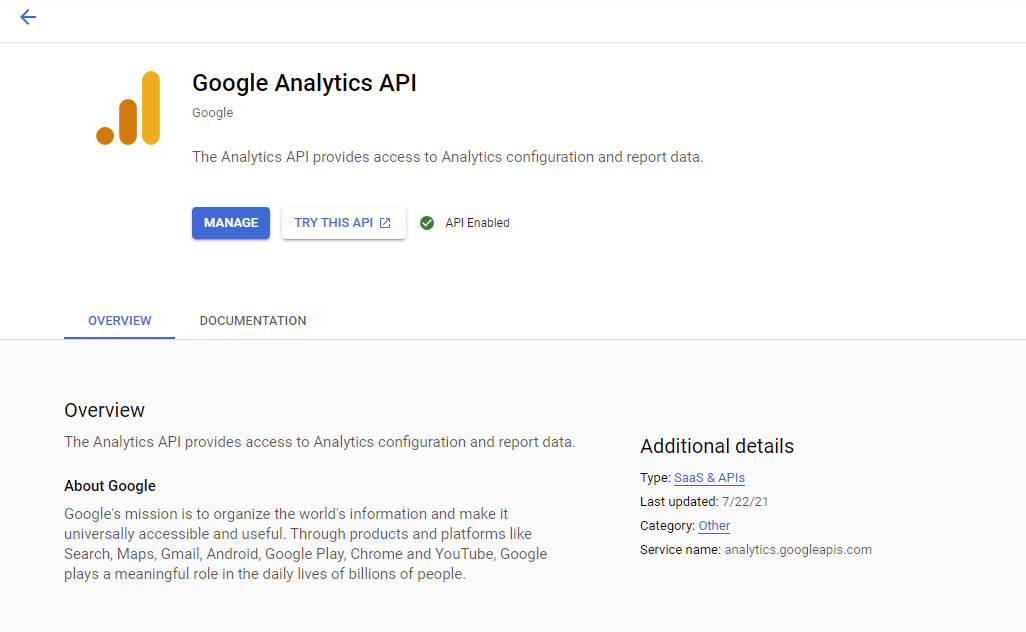
So how do we solve this issue and restore missing transactions in Google Analytics and Google Analytics 4 (GA4)? Luckily for you, our team did intensive research and developed an extension that solves this problem without any hassle. It will help you recover missing transactions in Google Analytics that have not been appearing in Analytics Reports. For this purpose, our extension utilizes Google Analytics API to compare orders between Magento 2 store and Google Analytics once compared it sends back all the missing orders to Analytics. Let us learn more about Google Analytics API
Measurement Protocol & Google Analytics API
Measurement Protocol for Google Analytics 4 (GA4) is used to directly send event data to analytics via HTTP requests. We will first compare the orders between analytics and magento backend using Google Analytics Data API then utilize Measurement Protocol to send the missing orders to GA4. Google Analytics API is mainly used to access the Universal Analytics report data as well as the configuration data. Our Scommerce Magento 2 Missing Transactions extension utilizes Measurement Protocol for Google Analytics 4 (GA4) and Google Analytics API to fetch orders from the report data and compare it with the orders in the Magento 2 backend. This helps decide which orders are missing in the Analytics so that they can be repopulated. The API is quite useful and can be utilized to access various other features by Google. Please refer to the following documentation.
Generating Measurement Protocol API Secret
In order to access the analytics data we are going to need the Measurement Protocol API secret key which is unique to each GA4 view. Please follow the steps below to generate the Secret key.
- Go to Google Analytics 4 (GA4) view then navigate to Admin>Data Streams>Select your store>Measurement Protocol API secrets.
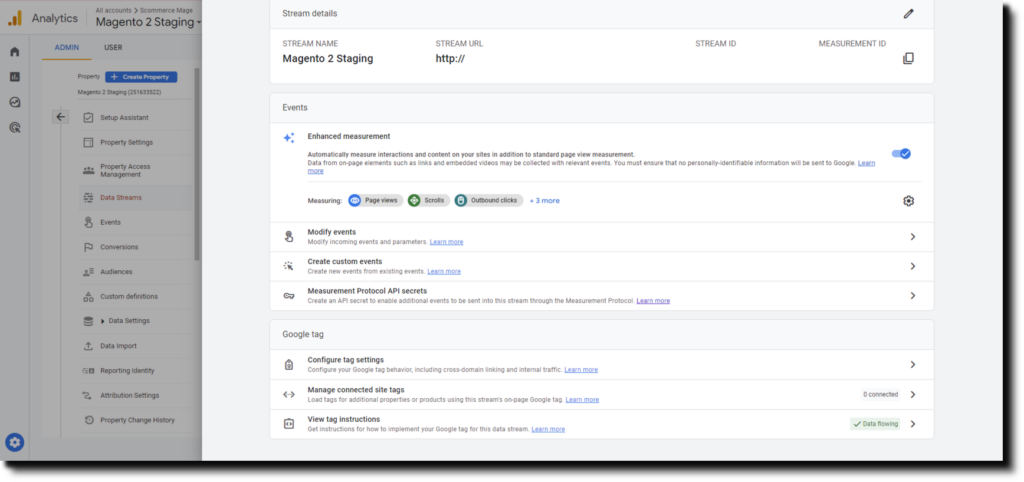
- Click on the Blue create button to generate a new secret key
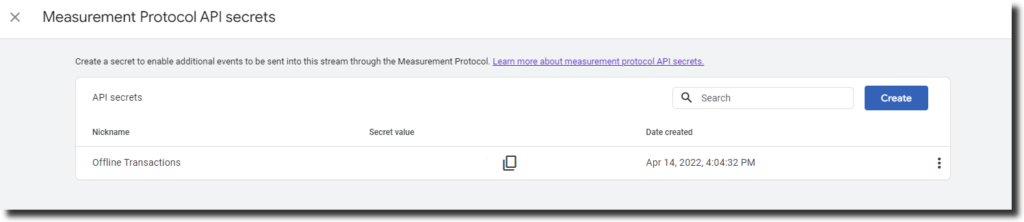
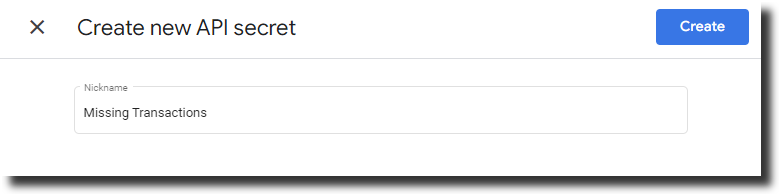
- Enter the nickname and then click create, it will generate your new Secret Key. Copy this secret key value which we will use within our module.
Enabling Google Analytics API & Google Analytics Data API
To use the Google Analytics API we willl have to create a new project in the Google’s Developer Console. Visit the Google’s developer console then follow the steps below:-
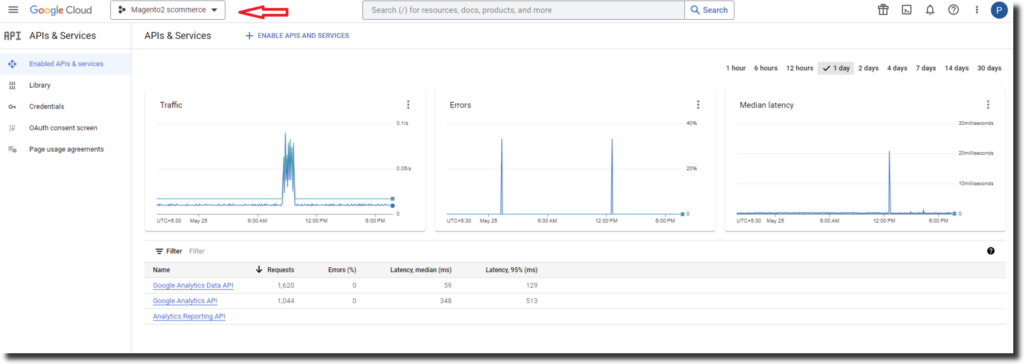
- Click on the dropdown on the left as shown in the image below and a popup will appear on your screen.
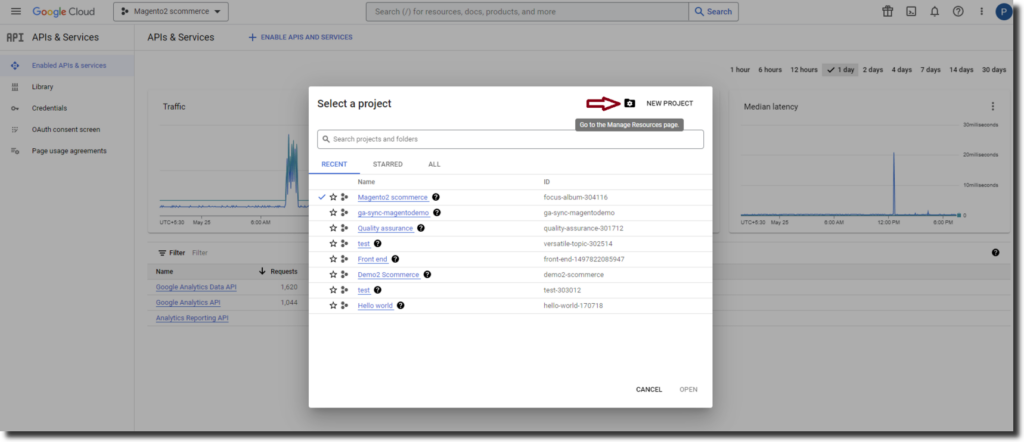
- Click on New Project
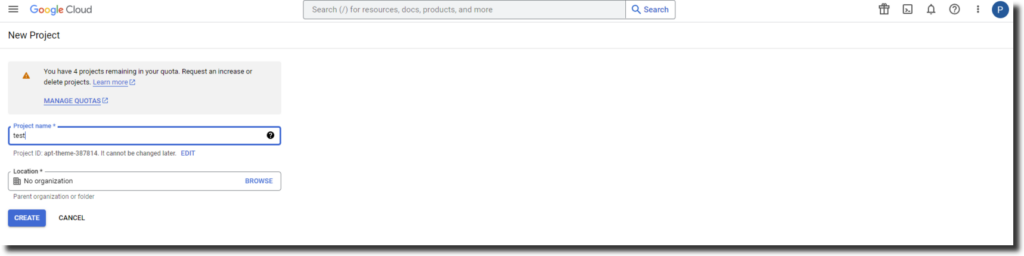
- Enter your project name and Location then click on create
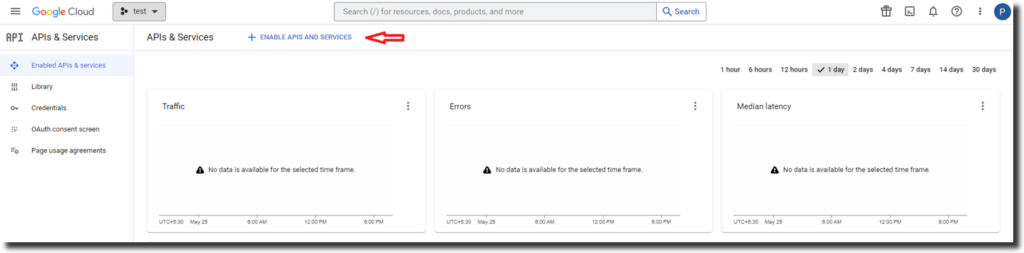
- Click on Enable APIS and SERVICES
- In the next window search for Google Analytics Data API and then click on “Enable”.
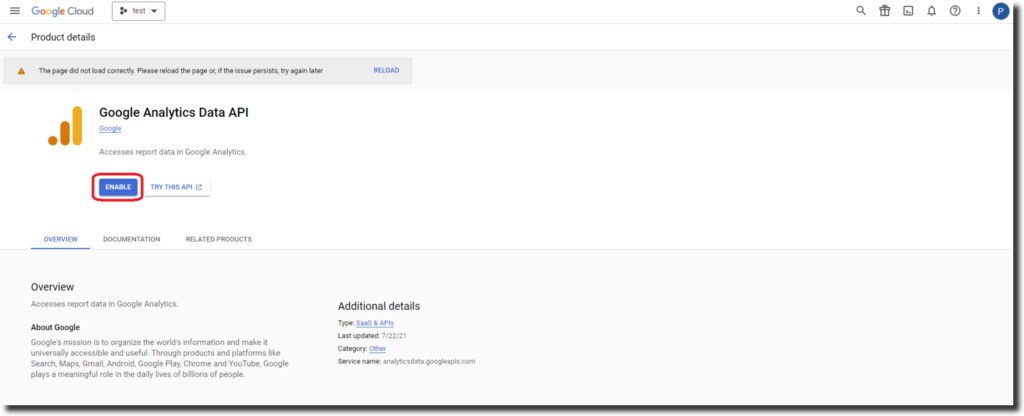
- Similarly enable “Google Analytics API” as well.
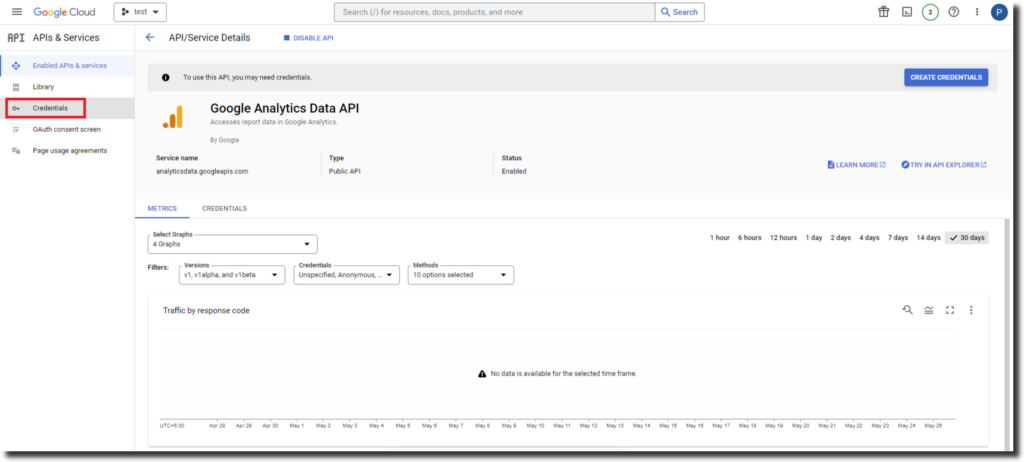
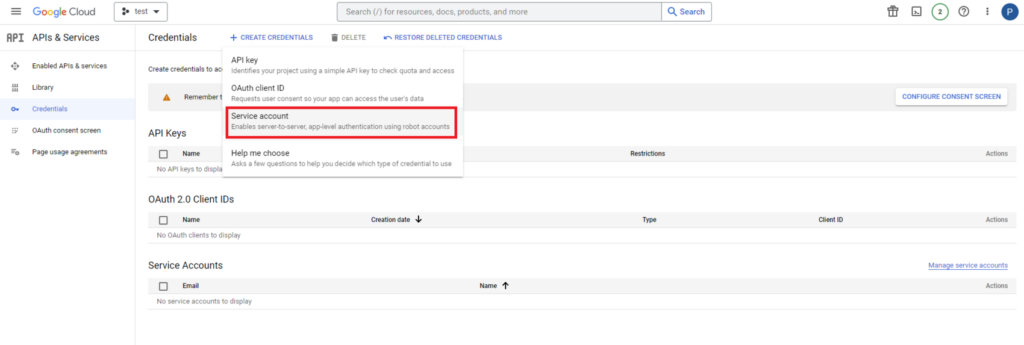
- Click on Credentials from the left window then click on Create Credentials and choose service account.
- In the next window, fill in your service account name and description then click on Create. An email will be automatically created as per your name. We need to add this email in google analytics. We will do it in the steps down below. Your service name will be your Application Name that you will enter in the configuration.
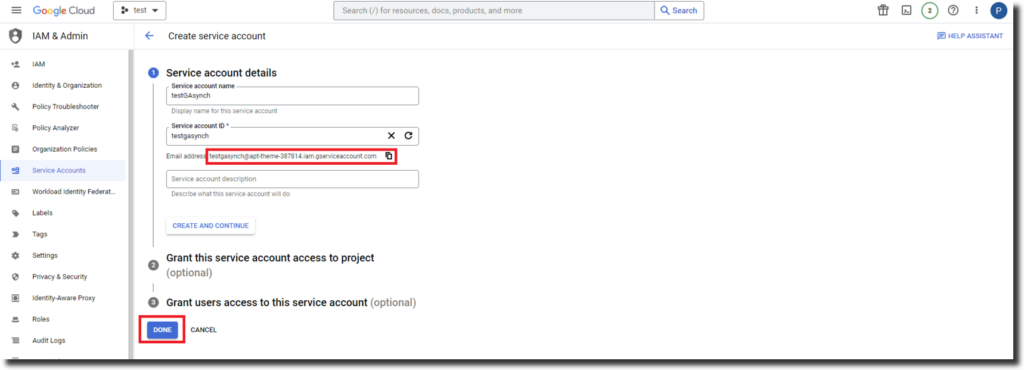
- Click on continue without selecting a role.
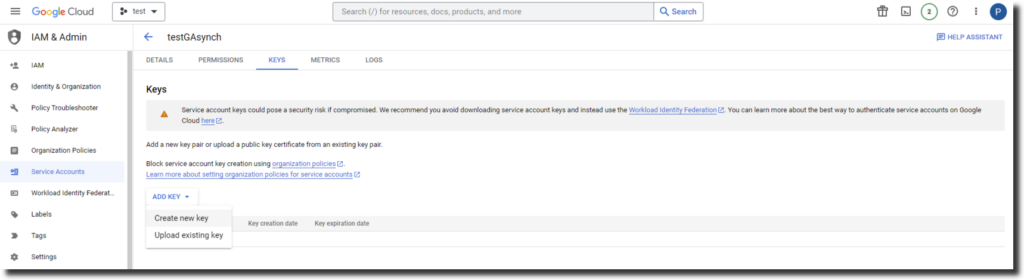
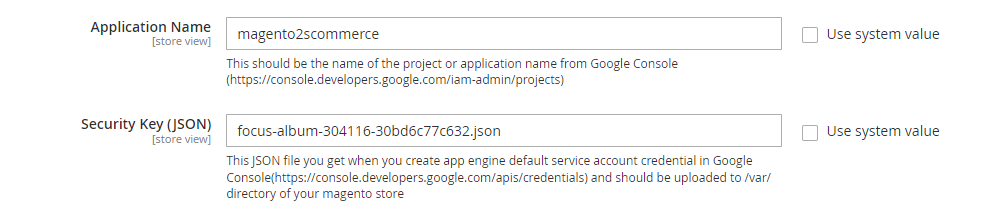
- Click on Create Key from the image above and select json your key file will be downloaded. Place this key file in the VAR directory of your website. Copy the exact name with extension “.json” and input it into the security Key in the configuration.
- Login to your Google Analytics account. Go to Admin > User Management. Add the email we got in the steps above with “Read and Analyze” permissions.
Magento 2 Missing Transaction in Google Analytics 4 (GA4) Extension Configuration
Magento 2 Missing Transaction in Google Analytics 4 (GA4) extension by Scommerce enables you to achieve data accuracy in analytics reports. It compares transactions in GA4 and magento backend then sends the missing transactions to analytics. Let us go through the extension setup and see how the module works:-
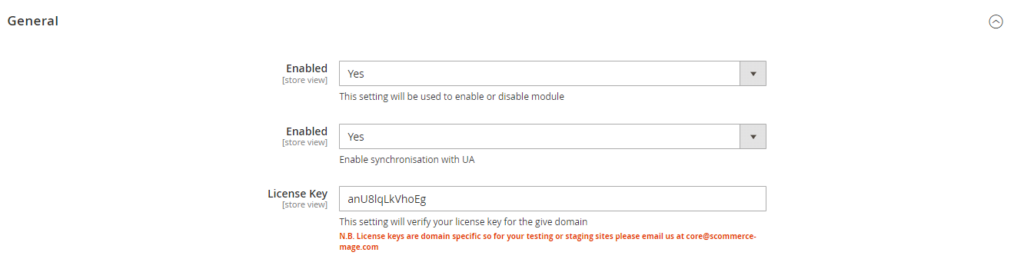
- Install the module and go to Stores>Configuration>Scommerce Configuration> Google Analytics Synchronization. Enable the module, add license key and enable the UA Synchronization to send missing transactions to Universal Analytics.
- Add the Application name and Security Key name that we obtained from the earlier steps while creating service account on Google Cloud Console. Make sure this key is placed in the var directory of your Magento installation.
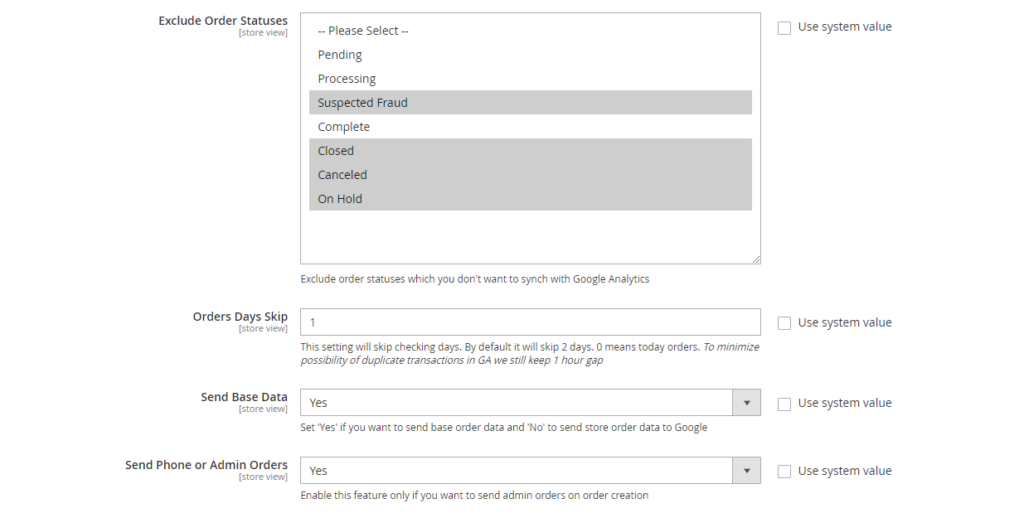
- You can choose to exclude certain order statues from being compared and synced. Set the “Order Days Skip to the number of days that you want to skip before syncing transactions for eg:- 1 means that all orders from yestarday will be compared and synced. You can also choose to compare send admin orders.
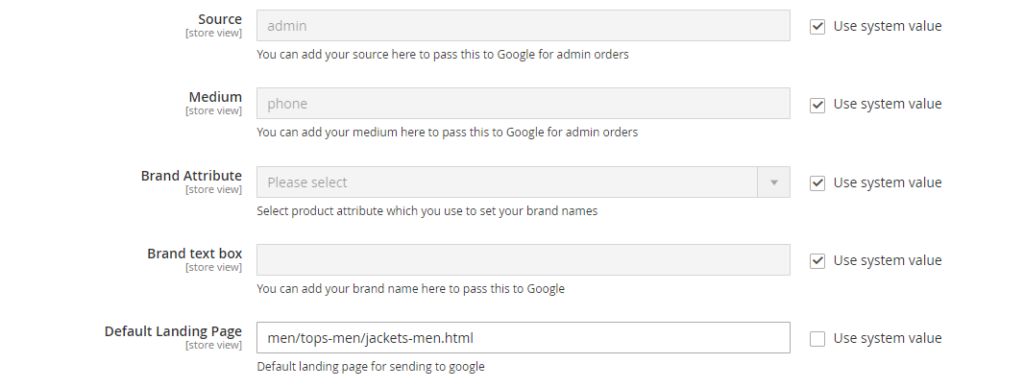
- Similarly you can choose to send specific source/medium with admin orders to Google. Add brand attribute, brand text and default landing page as well.
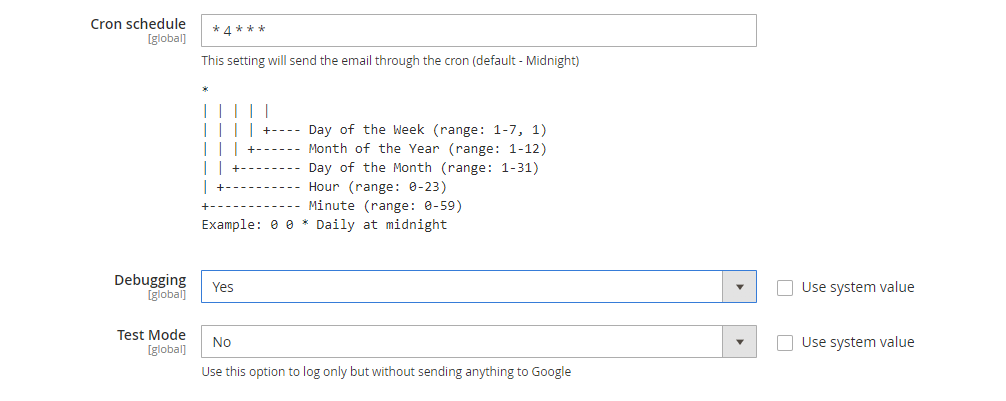
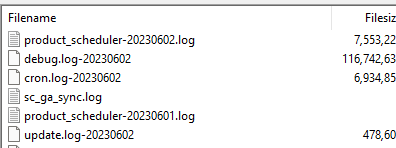
- Set the Cron job timings so that sync will automatically run during specific times of the day. Set ‘Debugging’ to ‘yes’, it will create sync log file in var/log which can be used to track which orders were synced with UA. Enabling “Test Mode” will not actually send transactions to UA but it is only for testing purposes.
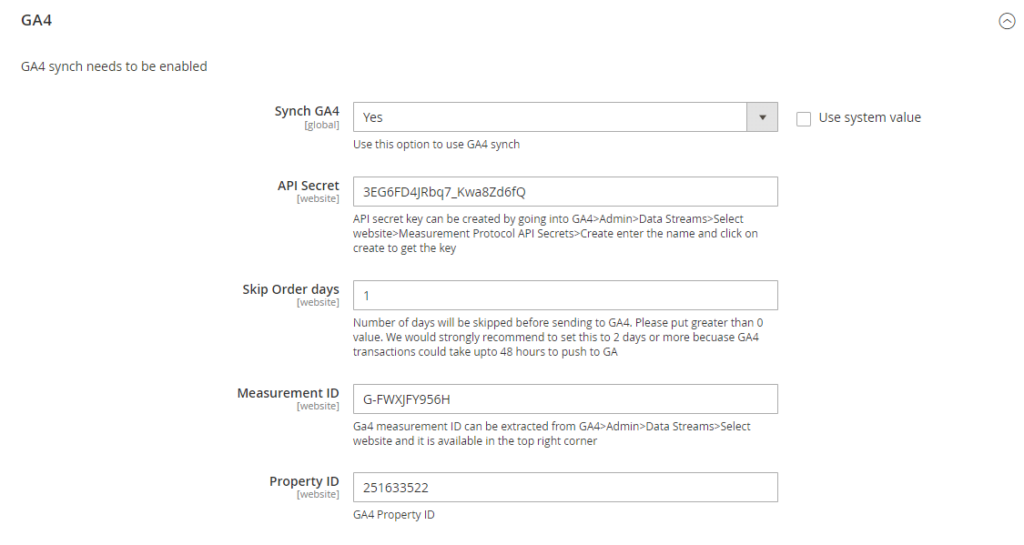
- Go to the GA4 section enable the sync, add Api secret key and measurement id obtained in the previous steps. Also, add the property id of your GA4 container and the order skip days(this can not be less than 1 as GA4 takes time to populate data into reports).
- Finally your setup is ready.
Testing the Missing Magento 2 Transactions in Google Analytics 4 (GA4) setup
In order to test your setup you will have to disable your GTM tracking/GTAG or any other tracking that sends transactions to Google Analytics 4 (GA4) or Universal Analytics. Once the setup is done the extension will start saving Order Tracking Info against each order which will be used to send transactions accurately to Analytics. Next, place a few orders and run sync (same day for UA/ depending upon ‘Order Skip Days’ config or the next day for GA4/depends on config). Once the sync is done you should be able to see orders in both UA and GA4 reports. Alternatively you can check the Synchronization Logs shown in the next section to verify whether the orders have been synced or not.
Synchronization Logs
Synchronization logs can be found in two places:-
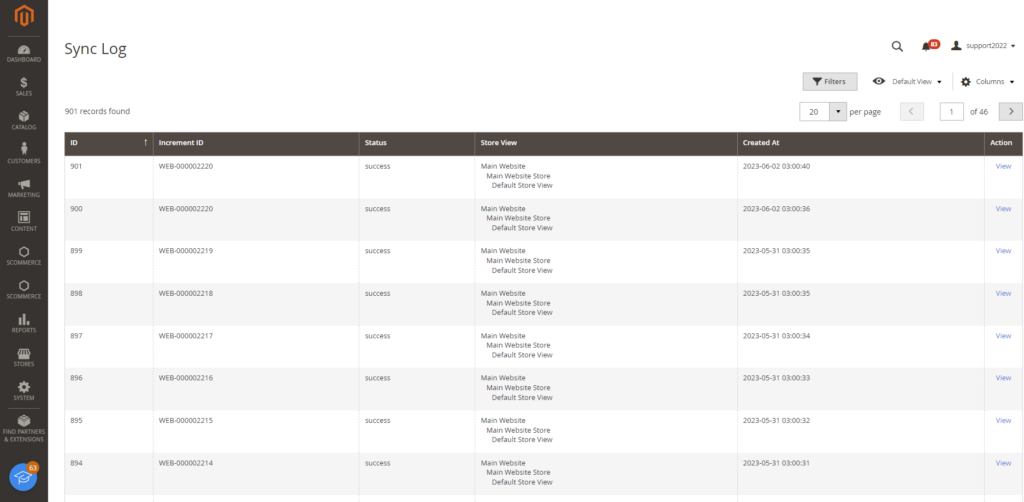
- Grid in the admin panel that stores all the information of the transactions that were synced. To access this grid go to Admin>System>Manage GA Sync Logs>Ga Sync Logs
- Generates a log file in var/log/sc_ga_sync log file that stores the information about synced orders.
Conclusion
In this article, we looked into various reasons for Missing Magento 2 Transactions in Google Analytics 4 (GA4) / Universal Analytics. We also checked the Missing transactions module by Scommerce Mage and how it compares and sync’s all missing orders between Magento 2 order grid and Google Analytics 4 (GA4)/ Universal Analytics Reports. You can check the demo of the module in the below links to do a test run for yourself:-